

Technology 101 New Teacher Training 2023

Presentation
•
Professional Development
•
Professional Development
•
Practice Problem
•
Hard

Jeffrey Losch
FREE Resource
17 Slides • 0 Questions
1
Technology 101
New Teacher Training
August 21, 2023
1:15 - 3:30 pm
Jeff Losch - HVRSD Educational Technology Administrator
Mark Amantia - HVRSD Technology Trainer
2

Signing In For the First Time
Username
FirstLast
Initial Password
Hopewell2023
New Password
●at least 8 characters
●at least 3 of the following
○lower case letter
○upper case letter
○number
○special character
3



Duo
●Recommended Setup Duo Authenticator
○Download the App
■IOS
■Android
○Classlink
○OnCourse
IOS App
Android App
4

Chrome Browser
●The Chrome browser should used for all school-related activities.
●Be sure to Sign In and Synch to the Chrome Browser.
○If done correctly, there should be an HVRSD folder containing links to Classlink and Help Desk
●Accessing another Google account
○click on your image in the upper right corner of the browser and choose Add.
●If you see the word “Update” in the upper right corner, you should update at your
earliest convenience. You can also check for Updates manually.
●Clear Cache extension - fixes a lot of issues, along with Restarting computer (especially
in district). Can also easily Clear Cache w/o the extension.
●Clear Cache and Restart on a regular basis…every Friday so you’re good for Monday.
●Bookmark sites and even create Bookmark folders in Chrome.
●Pinning and unpinning Extensions.
5

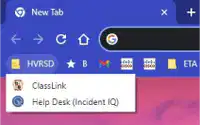
Classlink
●Launchpad used to access many sites
●How to access the link to Classlink
○The Home button in your Chrome browser
○From the HVRSD folder on your Bookmark bar in Chrome
○From any HVRSD.org website under MENU > FOR STAFF
●Sign in with district Username/Password (without @hvrsd.org)
○Sign in with Google only works if you go into the Classlink settings and enable it
●Set up your Multi-Factor Authentication for Duo Push
●Change password
●Set up Password Recovery
●Classlink Quick Guide for Teachers
●Educational Technology shared drive Classlink folder
HOME
HVRSD
folder if
synched
6

Resources
●Educational Technology shared drive
○Can access by going to Google Drive > Shared drives > Educational Technology
●HVRSD Technology Academy
○Can access from any HVRSD site under FOR PARENTS or FOR STUDENTS
7

Help Desk - IncidentIQ
●Use the Incident IQ Help Desk site, which can be found in Classlink or the
HVRSD folder on your Chrome toolbar.
●Be as detailed as possible: room location, availability, screenshots (if
possible), etc.
●Emailing HelpDesk@hvrsd.org.
○If you cannot access the Help Desk site, email is acceptable.
○If you can access the site/software and need training/help
■PK-5 - Mark Amantia, and/or Jeff Losch.
■6-8 - Mostly just Mark and/or Jeff but potentially others listed below.
■9-12 - Dana Heller, Nick Johnson, Eric Guise, Mark Amantia, and/or
Jeff Losch.
8

KnowBe4
●Phish Alert
●Educational Technology shared drive KnowBe4 folder
9

IronPort Spam Quarantine
●Many emails will go through the IronPort Spam Quarantine from Cisco
●Notifications are emailed once per day.
○More details: IronPort Spam Quarantine Notification
●To check for an important email, it’s good to have your dashboard
bookmarked
○Bookmark IronPort Spam Quarantine Dashboard
10

GoGuardian
●used to monitor students in real time and/or view what they did in class
after the fact
●GoGuardian
11

Watching Videos in Class
●Stream from HV-TV website.
●Streaming Netflix, Hulu, Amazon Prime, etc.
○Will likely NOT work wirelessly through Airtame.
○Will work if using old laptop in docking station that is hardwired.
○May work disabling “use hardware acceleration when available” in Chrome
○May work using Firefox
●External USB DVD drive connected to laptop.
●Many free sites host desired content: YouTube, Edpuzzle, etc.
12

Google Groups
●Used in Communicating with Staff, among other things
○“Staff - All” alerts should be received immediately.
○“Staff Conf” messages can be set to only receive a daily digest.
○Any message sent either way can be found after the fact in your Google Groups.
●More information: Using Google Groups
13

Printing/Photocopier
●When printing choose CanonSecureBW or CanonSecureColor.
○Only use color if it is absolutely necessary.
○Use your ID badge at a copy machine to retrieve your printouts. There will be a
dashboard to help choose which ones if you printed more than one.
○Print jobs stay in the cloud for 24 hours, so you can send the job but print later.
○There are also smaller printers in some offices that can retrieve print jobs. They do not
have dashboards, so they just start printing everything you sent as soon as you swipe.
○The cost of printing to a copier is SIGNIFICANTLY cheaper than printing to an office
printer, so use the latter sparingly.
●Scanning with OCR
●See CanonSecure Ed Tech shared drive for more information.
14

LinkIt!
●PK-5 go to Classlink and make sure you can sign in.
●You’ll learn more about it from Elementary Tech Leaders later this week
●There is some information here: LinkIt
15

Artificial Intelligence
●When using ChatGPT and similar sites, please note:
○Under 13 may NOT use it at all.
○Students 13-17 need parent permission.
●Do not rely on any tools to determine if student work was created by AI.
They should only be the start of a conversation.
●Set clear guidelines with your students at the start of the year defining
Academic Integrity and the role AI plays.
●AI Tools Master List
●Diffit.me
●Eduaide.AI
●EduGPT
16

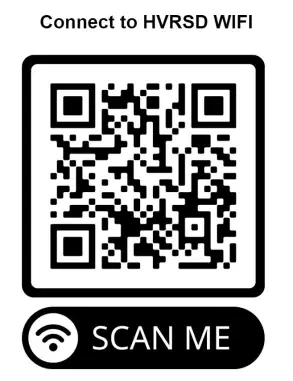
Use this QR code to
connect personal
devices to Guest2.
It is safer than Guest,
which is completely
open.
17

Other Stuff
●Laptop Troubleshooting for Teachers (restart computer)
●Classroom Chromebook Help Poster: HS, TL, PK-5
●Frontline (Absences/Forms)
●Payroll Portal/Doculivery
●State Mandated Training 2023-2024 First Year Staff:
○GCN, Navigate360/ALICE
●Websites/Software Approval (Menu > For Staff)
●ALL Social Media Accounts Related to HVRSD Must Be Archived
○If you have a social media account relating to HVRSD, please fill out this brief form and we will be in touch
with the next steps.
○Not only is this a state law and board policy but it will also help protect individual staff members.
○REMINDER: all HVRSD-related social media accounts must be owned by a staff member using their HVRSD
email address.
Technology 101
New Teacher Training
August 21, 2023
1:15 - 3:30 pm
Jeff Losch - HVRSD Educational Technology Administrator
Mark Amantia - HVRSD Technology Trainer
Show answer
Auto Play
Slide 1 / 17
SLIDE
Similar Resources on Wayground

11 questions
Teenager 5 Session 22: Pronunciation & Speaking
Presentation
•
KG
11 questions
Fractions
Presentation
•
Professional Development
10 questions
Holiday Movie Trivia
Presentation
•
Professional Development
14 questions
Simple Past
Presentation
•
Professional Development
11 questions
Phonological Awareness
Presentation
•
Professional Development
11 questions
Pretest for diversion and intervention
Presentation
•
Professional Development
12 questions
States and Music
Presentation
•
Professional Development
15 questions
Technology Training
Presentation
•
Professional Development
Popular Resources on Wayground
10 questions
Safety Day 2026 – Student Review

Quiz
•
9th Grade
21 questions
Continents and Oceans
Quiz
•
6th Grade
20 questions
Parts of Speech
Quiz
•
5th Grade
16 questions
Subject & Predicate
Quiz
•
5th Grade
25 questions
Multiplication Facts
Quiz
•
5th Grade
12 questions
Map Skills
Quiz
•
3rd Grade
22 questions
Continents and Oceans
Quiz
•
5th Grade
15 questions
Rounding Decimals
Quiz
•
5th Grade